
What's New in AudioMulch 2.2?
AudioMulch 2.2 introduces the new features and refinements listed below. AudioMulch 2.2 is a free upgrade for licensed AudioMulch version 2 users.
Lower latency
We've been working to reduce latency with high-end sound cards. AudioMulch's sound processing engine has been overhauled, resulting in even lower latency response to MIDI events, and improved real-time audio processing stability with very low latency buffer settings. On Mac OS the 256 sample lower limit on audio buffer sizes has been removed - this limit was never present on Windows. We've also added an option to disable Desktop Window Manager MMCSS scheduling for Windows Vista and Windows 7. This reduces graphics-related audio glitching on some systems.
MIDI output contraptions
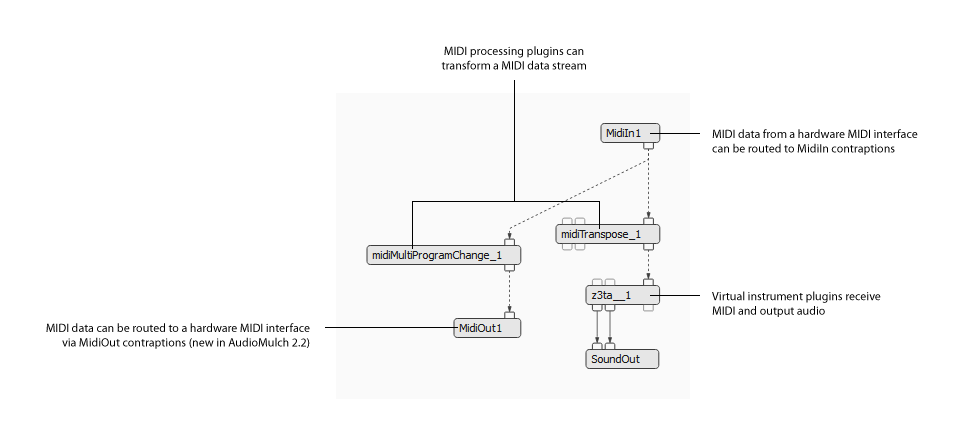
MIDI output contraptions in the Patcher Pane
AudioMulch 2.2 lets you route MIDI data from plugins to external MIDI devices using MidiOut contraptions. You can use MidiOut contraptions to control hardware MIDI synthesizers or outboard effects processors. This adds to the existing functionality, which allows MIDI sequencing and VST instrument plugins to be connected using MIDI routing in the Patcher Pane. MidiOut contraptions are intended to be used with VST and Audio Unit plugins that send MIDI output, such as control generators, data transformers and sequencing plugins. When combined with MidiIn contraptions, this also lets you use AudioMulch to process and route MIDI. AudioMulch doesn’t currently include any built-in MIDI processing contraptions. There are lists of recommended MIDI plugins for Mac and for Windows.
Improved MIDI and network clock (beat) synchronization
AudioMulch 2.2's new timing engine improves timing stability when chasing MIDI and network synchronization. MIDI synchronization is now compatible with a broader range of sound cards and MIDI interfaces. We've also improved timing stability for MIDI sync output on Macintosh. A new pattern mode option provides compatibility for sending MIDI clock to simple pattern-based step sequencers such as Korg Electribes and the Nord Micro Modular. We've made sync offset settings more consistent (positive values always make the slave later), and added sync offset settings for network synchronization.
New community patch sharing and discography at AudioMulch.com
AudioMulch.com has recently been updated with a new patch sharing area, and a discography that users can edit. In the patch sharing area, you can download and share patches ranging from simple examples to a complex compositions. You can learn about releases by other AudioMulch users in the discography, and also promote your own releases. Follow the links to visit the patch sharing area, and the AudioMulch discography.
Display and edit frequency parameters as musical pitches
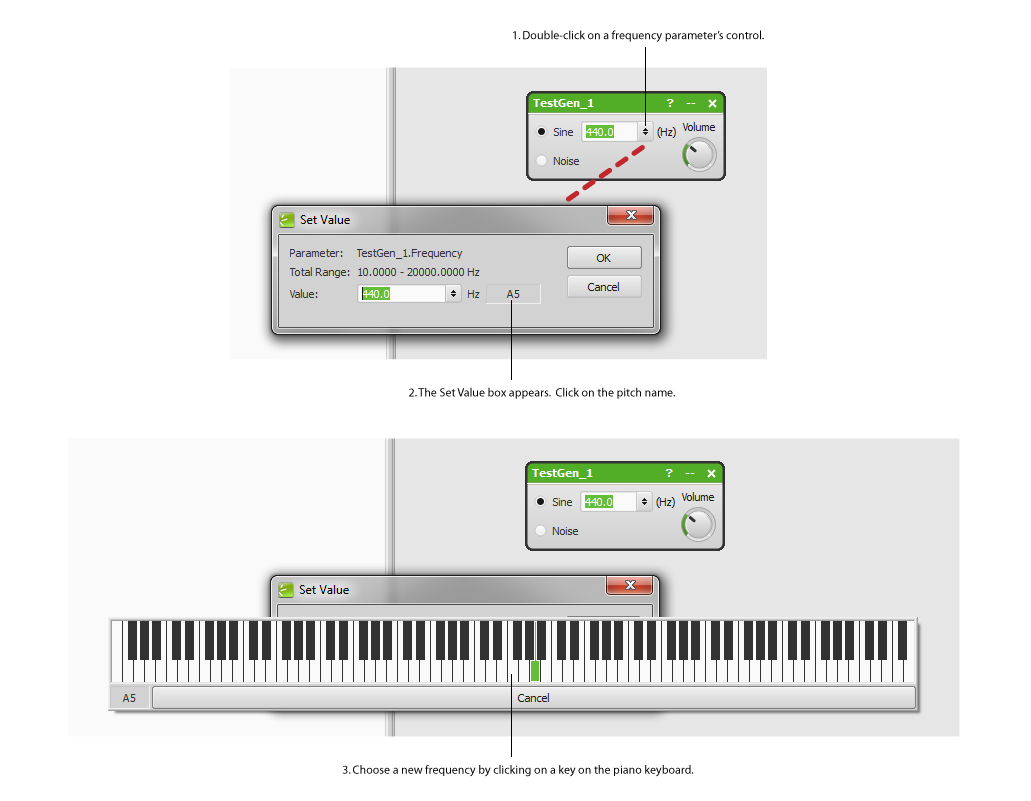
Edit frequency parameters as musical pitches
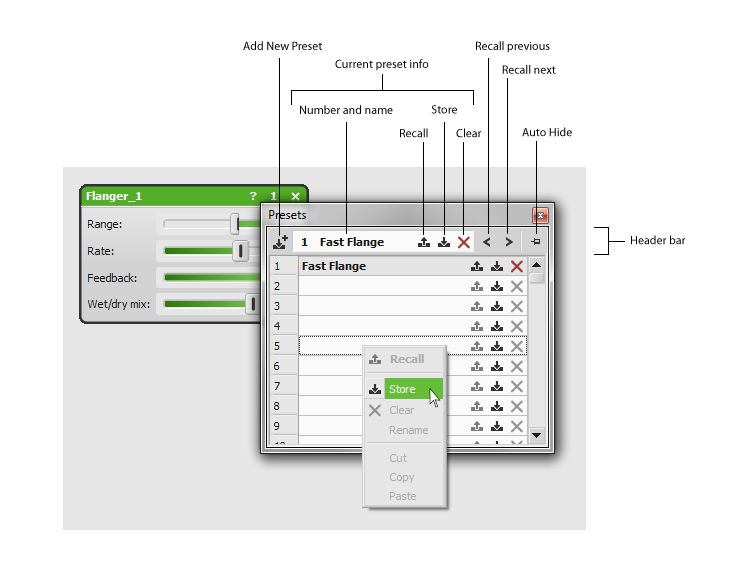
Presets window improvements
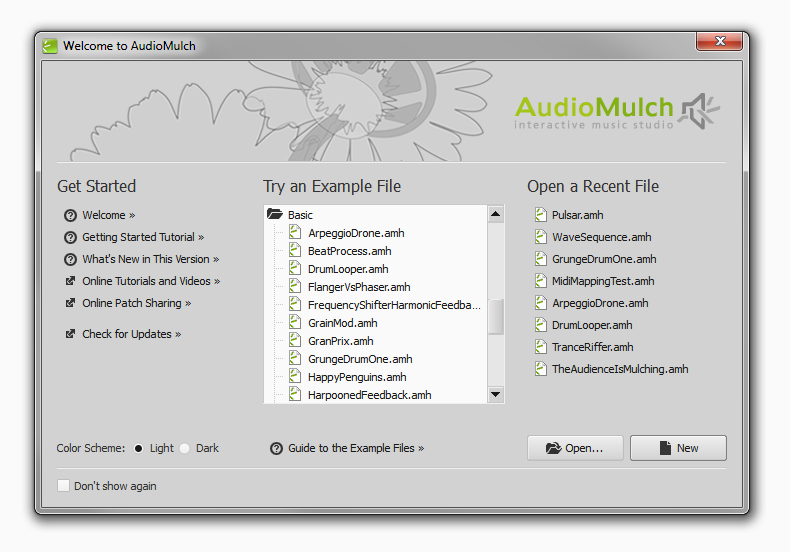
New Welcome Screen
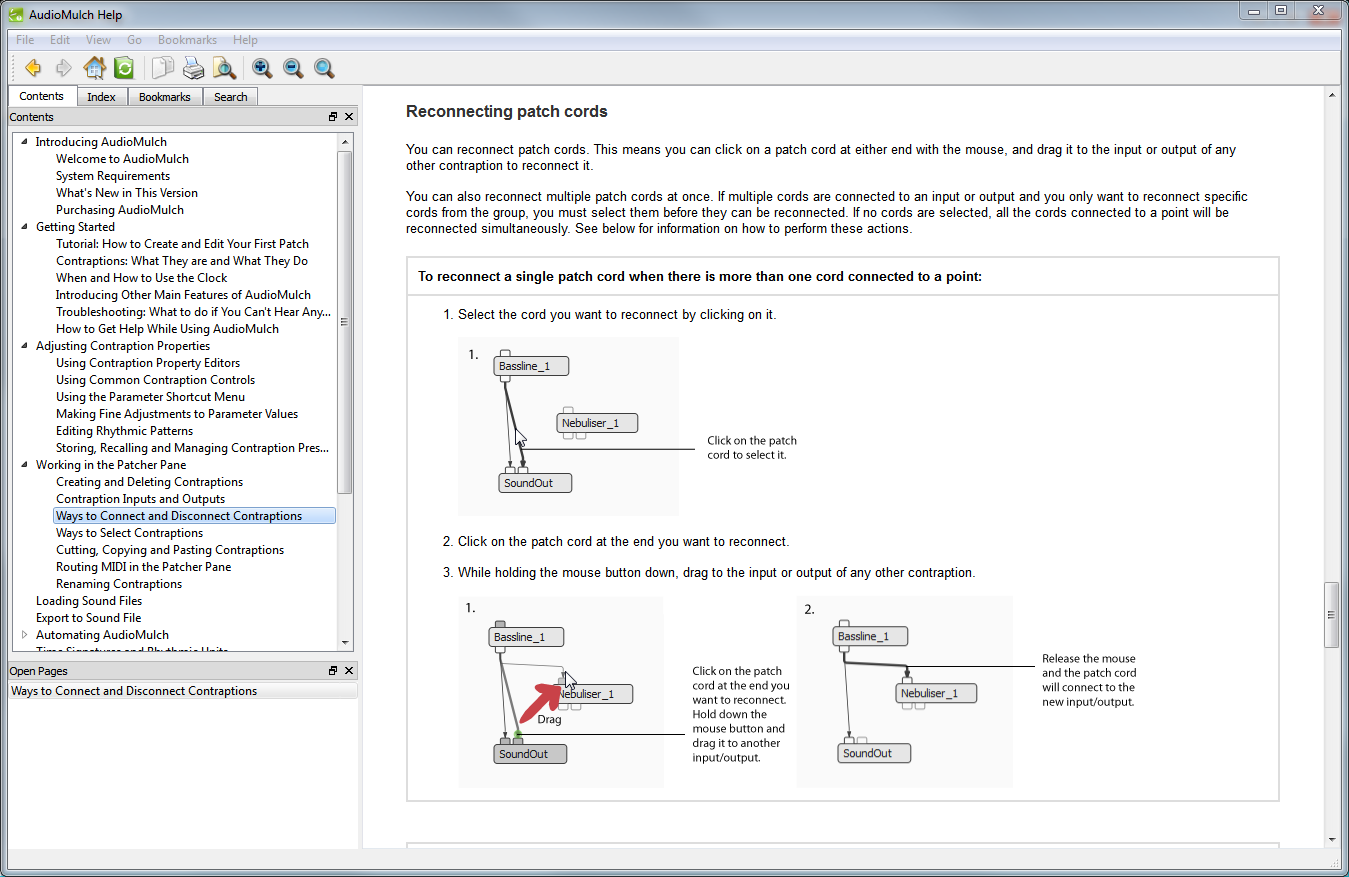
Updated help system
You can now work directly with musical pitch names when using frequency parameters that are usually displayed in Hertz. Frequency values are now annotated with the musical note name and deviation from the pitch in cents. In the Set Value Dialog Box, you can enter frequencies as musical pitches using a piano keyboard interface.
New SChorus stereo chorus contraption
We've added a new, versatile stereo chorus contraption called SChorus. SChorus is the result of research into the behavior of classic chorus units.
Contraption preset improvements
A new header bar in the contraption Presets Window gives you a more streamlined method of working with presets. By clicking on the buttons on the bar, you can store a new preset and browse between presets. The Presets Window's auto-hide behavior can now be toggled on or off. We've also removed the limit on the number of presets you can store in each contraption.
Use MIDI control to switch Metasurface snapshots
You can now use MIDI control to switch between Metasurface snapshots. Use a MIDI pedal board or other MIDI controller to switch snapshots in live performance when you don’t want to have to reach for the mouse.
New Welcome Screen
When AudioMulch launches you can now have quick access your recent documents via the Welcome Screen. The Welcome Screen also provides links to other common tasks and web site resources.
Improved plugin compatibility on Mac with a new Cocoa-based user interface
AudioMulch is now using Apple’s “Cocoa” framework. This brings improved compatibility with Audio Unit plugin user interfaces. This is also a step in the direction of future support for 64-bit operation.
Improved Help File with step-by-step instructions
AudioMulch's help system has been updated and restructured with a clear, step-by-step tutorial format to get you started quickly. This is a long-term project and we're about half way through. So far we've taken care of these sections: Getting Started, Working in the Patcher Pane and Adjusting Contraption Properties.
Other improvements and bug fixes
Version 2.2 includes a range of other enhancements, tweaks and bug fixes. We've listed the enhancements that will impact on your workflow below. For the full list of changes check the release notes.
- We've added the ability to clear automation points without deleting the time range. Using the DELETE key or selecting the Clear item in the Edit menu deletes the selected points. Using the Delete Time item in the Edit menu deletes the time range, which used to be the default behavior.
- Added clock-synchronous period and phase mode to SSpat contraption. This lets you synchronize spatialization paths to the global clock pulse. Note: as a result of this change, documents saved with AudioMulch 2.2 that use SSpat will not load correctly in AudioMulch 2.1 (see important note below).
- The Metasurface parameters tree now supports multiple selection (using drag, SHIFT+click and CTRL+click). Enable Selected Parameters and Disable Selected Parameters shortcut menu items have been added. See The Metasurface page of this Help File for details.
- You can now adjust the brightness and contrast of the user interface color scheme on the Appearance page of the Settings/Preferences Dialog Box.
- The interpretation of MIDI Control Change and Program Change messages has been updated to conform more with the MIDI specification when controlling presets and Metasurface snapshots. By default, the first (0th) MIDI value now maps to the first (1st) preset/snapshot. There’s also an option to change the offset. See Controlling AudioMulch Parameters from MIDI for more information.
- We've unified handling of drag-and-drop behavior between Metasurface snapshots, contraption Presets, Document Switcher document entries, File Player and File Recorder. These should now all behave consistently.
Important Note: Due to changes made to the SSpat contraption in this release, documents saved with AudioMulch 2.2 (or later) that use SSpat will not load correctly in AudioMulch 2.1. Users who wish to continue using these documents with AudioMulch 2.1 are advised to make backup copies before saving them with AudioMulch 2.2.
Mac Users Note: AudioMulch 2.2 no longer supports Mac OS X 10.4 (Tiger), but does support all recent Mac OS X versions including the new OS X 10.8 Mountain Lion.
If you haven't used AudioMulch for a while, read on for information about the key enhancements that were added in AudioMulch 2.0 and 2.1.
What Was New in AudioMulch 2.1
Click to watch AudioMulch 2.1 time signatures in action

Dynamics contraptions
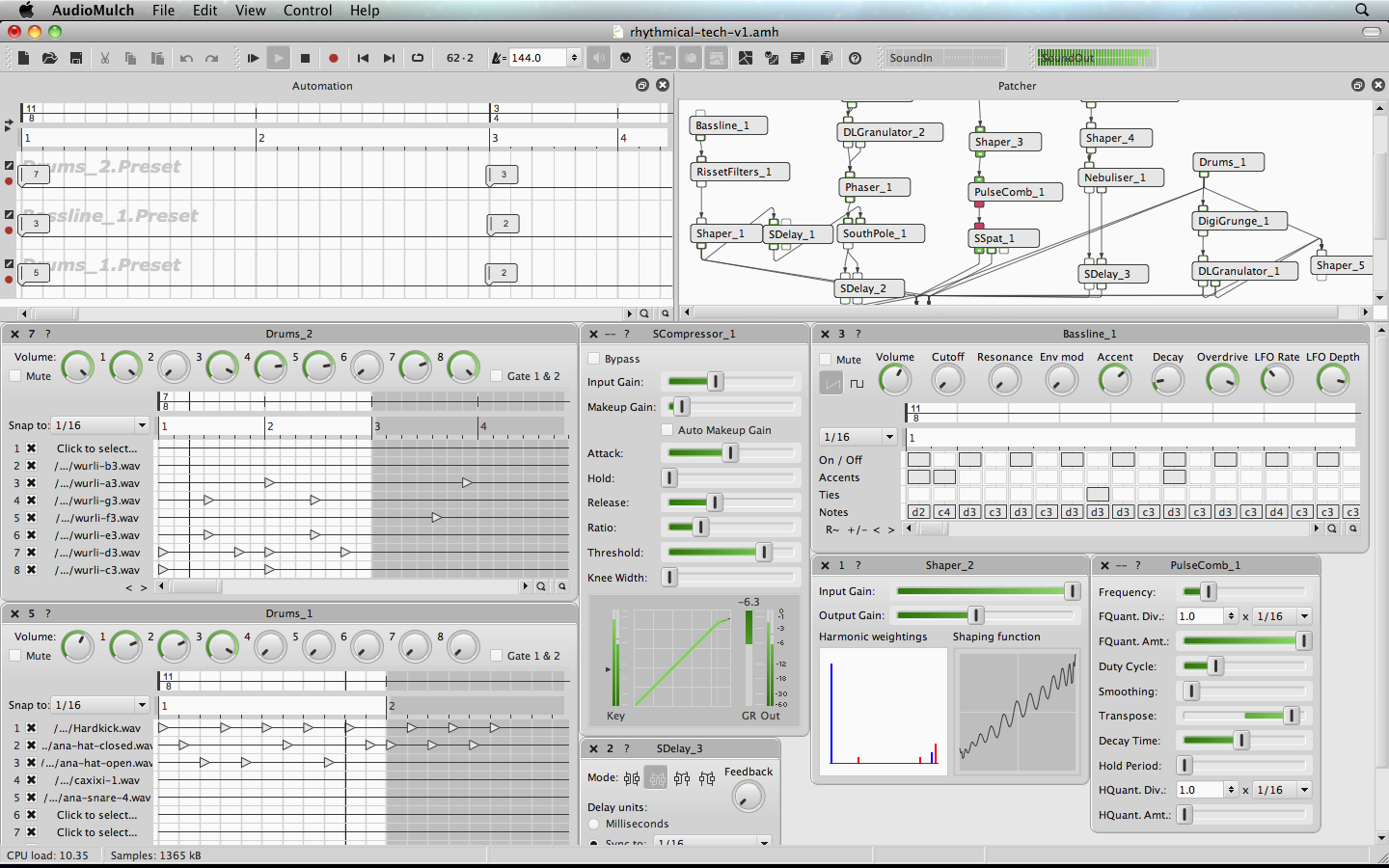
Time signatures, enhanced pattern editors
The main new features added in AudioMulch 2.1 are:
- New rhythmic matrix pattern editors for Arpeggiator, SouthPole and Bassline. All contraptions with rhythmic pattern editors (including Drums) now support user-selectable pattern lengths, matrix resolutions, non-4/4 time signatures and time signature changes. You can also click and drag to "paint" multiple triggers in the matrix pattern editors.
- Support for custom and user-defined time signatures and rhythmic units. Automation supports time signature changes. This opens a world of potential for polyrhythmic and polymetric music. Everything that used to be hard-wired to 4/4 time now lets you select a time signature (including CanonLooper, LiveLooper and LoopPlayer). Everything that used to be hardwired to 16ths (semiquavers) lets you select a rhythmic unit (including BubbleBlower, DLGranulator, Drums, LoopPlayer, Nebuliser, PulseComb, SDelay and SouthPole).
- New Compressor, Limiter and NoiseGate contraptions in mono and stereo versions. These contraptions are useful for shaping the dynamics (loudness) of your sound. They can be found in the new Dynamics category of the contraptions palette.
- Support for Audio Unit plugins on Mac OS X, giving you access to a new range of third-party audio effects and instruments.
- A new, alternative light gray color scheme. You can select between light and dark color schemes on the Appearance page of the Settings/Preferences Dialog Box.
- Support for hot-plugging MIDI devices. AudioMulch now remembers selected MIDI devices when they're not connected. You can connect them while AudioMulch is running. Just toggle the Enable MIDI button to activate them.
- Improved Help File including reorganized contraption reference pages for every contraption and MIDI parameter control help page to make it easier for you to find the information you're looking for.
For the full list of changes in AudioMulch 2.1 check the release notes
What Was New in AudioMulch 2.0
AudioMulch 2.0 was the first version of AudioMulch available for both Windows and Macintosh computers. The user interface has been re-coded from the ground up and a number of enhancements have been made along the way. The main new features added in AudioMulch 2.0 are:
- A new Patcher Pane with drag-and-drop contraption creation and auto-connection, re-connectable patch cords, multichannel patching, in-line audio level indicators, and MIDI routing.
- MIDI and Automation control for clock transport (tempo, stop, start) and Metasurface interpolation.
- Enhanced Drums contraption with 8 channels and a new pattern editor supporting arbitrary length high-resolution patterns.
- New "Startup Actions" settings let you enable audio, MIDI, transport, sync, and to load documents when AudioMulch starts.
- Expanded multichannel audio I/O capability to support up to 256 channels in each direction and improved compatibility with consumer multichannel audio interfaces using DirectSound and Windows Multimedia drivers.
- Increased audio processing efficiency.
- Nameable contraption presets.
- Faster access to parameter values and MIDI control by double-clicking sliders and knobs. Double click a knob or slider to show the Set Value dialog box, ALT+double-click to show the Quick-map MIDI Control dialog box, or CTRL+double-click to display the Parameter Control window.
- The Parameter Modulation dialog box has been renamed Parameter Control. You can access it via the View menu. It is now a floating window – so you can leave it open while you do other things.
- Dockable Patcher and Automation Panes for improved multi-monitor operation.